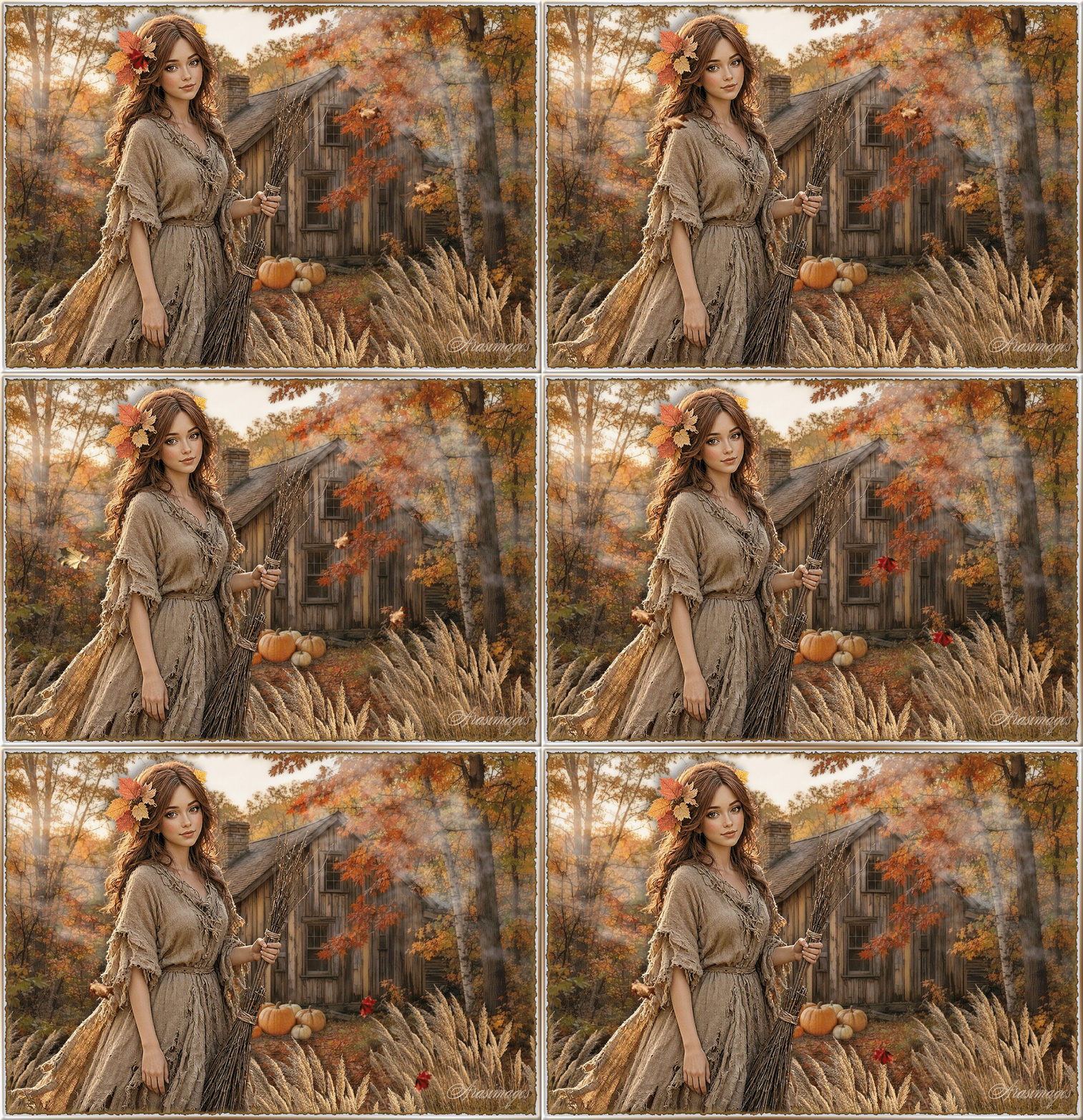
Softly It's Fall
For this tutorial you will need the materials in the zip file below.

For a French translation click on the flag.

This tutorial was written using PSP2020 Ultimate. To work this tutorial, it is assumed you have some working knowledge of Paint Shop Pro. Unzip materials in a folder you make on your desktop named Softly Its Fall. Save the original tubes and use copies for your work. Plugins used are Redfield/Quad Pencil and Alien Skin Xenofex 2/Burnt Edges, and some of the effects are those of PSP itself. Animation Shop is also used. Export the Fog 131 Brush in your PSP Brushes folder. I have used CTRL+D to deselect throughout this tutorial.
The images used are those I created and tubed in an AI generator.
In the zipped materials, I have included a cabin background layer and Pumpkins layer with the Redfield/Quad Pencil already applied for the convenience of those who do not have this plugin.
Use the Pumpkins below to mark your place along the way.
1. In materials Palette, set Foreground to color #f2efea, Background color #62503d.
2. Open the OldLogCabin.pspimage. Delete tuber name layer.
3. Effects/Redfield/QuadPencil.
4. Layer/New Raster Layer.
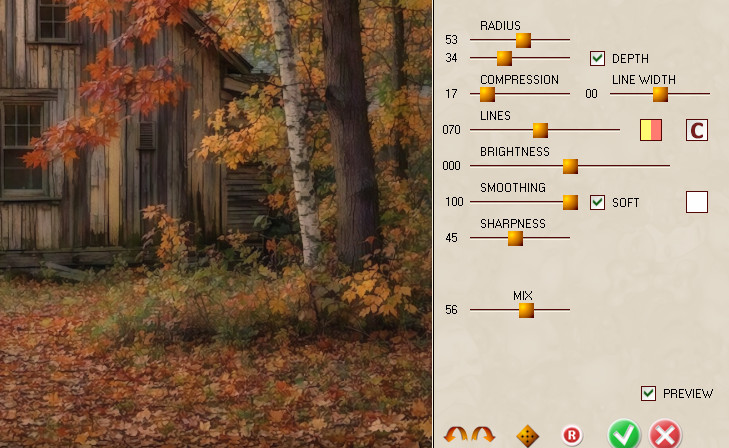
5. From tool bar select Paint Brush tool Fog131. Use settings below.

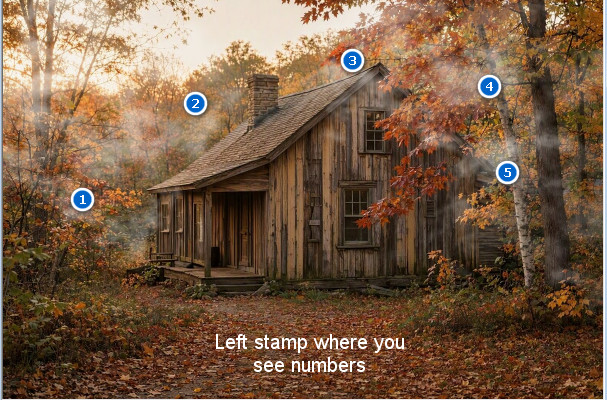
6. Left click twice numbers 1 through 5 where indicated in example image below. You do not have to be exact.
7. Open 7Pumpkins.png. Using Selection Tool set to Rectangle, Add Shift/Feather 0. Select around tubers watermark and delete. CTRL+D.
8. Image/Resize/Resize by 30%/Resize all layers unchecked.
9. Copy. Paste as New Layer on main image.
10. Effects/Image Effects/Offset. Horizontal 13, Vertical -192, Custom and Transparent ticked.
11. Lower Opacity down to 83.
12. Effects/Redfield/QuadPencil.
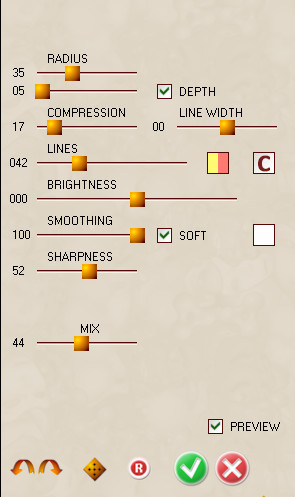
13. Effects/3D Effects/Drop Shadow. Vertical 13, Horizontal 5, Opacity 35, Blur 14, color #000000.
14. Open TassledGrass.png. Using Selection Tool set to Rectangle, Add Shift/Feather 0. Select around tubers watermark and delete. CTRL+D.
15. Image/Resize/Resize by 45%/Resize all layers unchecked.
16. Image/Mirror. Mirror Horizontal.
17. Copy. Paste as New Layer on main image.
18. Effects/Image Effects/Offset. Horizontal 457, Vertical -262, Custom and Transparent ticked.
19. Drop Opacity down to 90.
20. Paste as New Layer on main image again. (Grass still in memory).
21. Effects/Image Effects/Offset. Horizontal 133, Vertical -378, Custom and Transparent ticked.
22. Adjust/Sharpness/Sharpen.
23. Drop down to Raster 4. Duplicate.
24. Image/Mirror. Mirror Horizontal.
25. Effects/Image Effects/Offset. Horizontal -215, Vertical -60, Custom and Transparent ticked.
26. Activate Top Layer. Layers/Merge/Merge down twice so all stalks are in one layer.
27. Effects/3D Effects/Drop Shadow. Vertical -19, Horizontal 5, Opacity 35, Blur 14, color #000000.
28. Open FallLady.png. Using Selection tool set to Rectangle/Add (Shift)/Feather 0, select around the tubers watermark. Delete. CTRL+D.
29. Copy. Paste as New Layer on main working image.
30. Image/Resize/Resize by 120%/Resize all layers unchecked.
31. Effects/Offset. H -119, V 0, Custom and Transparent ticked.
32. Effects/3D Effects/Drop Shadow. Vertical -8, Horizontal -10, Opacity 35, Blur 24, Color #000000.
33. Adjust/Sharpness/Sharpen.
34. Image/Add Borders/Add 8px border, Symmetric checked, color #955d33.
35. Effects/Alien Skin Xenofex 2/Burnt Edges.
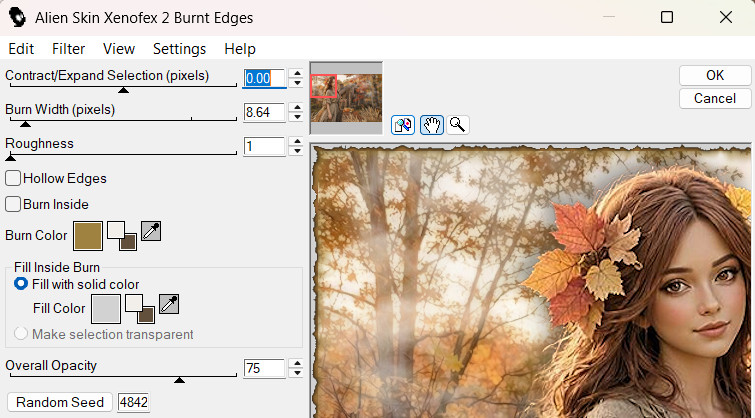
36. Image/Add Borders/Add 8px border, Symmetric checked, color #955d33.
37. Using Magic Wand select the 8px border to activate it.
38. In materials palette click on double small arrows, switch Foreground color #f2efea to Background. Change Foreground color to #94704c.
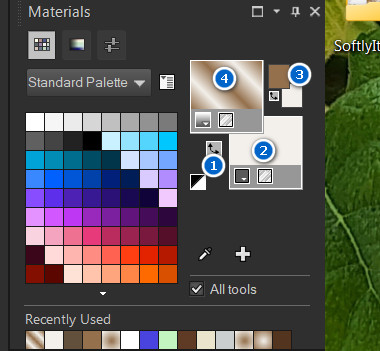
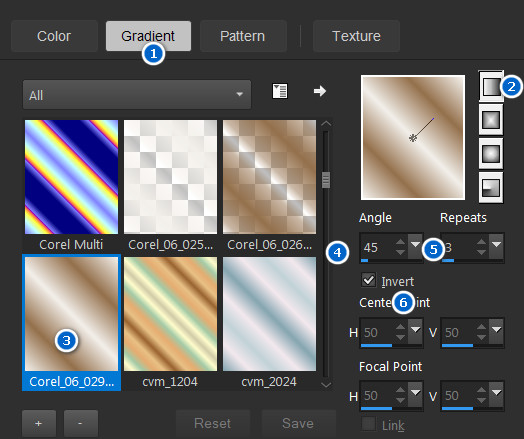
39. Create a gradient using these colors. Use settings Gradient, Linear, Corel_06_09 foreground/background, Invert checked, Angle 45/Repeats 3, Center Point/Focal Point all Null.
40. Flood fill 8px border with Gradient.
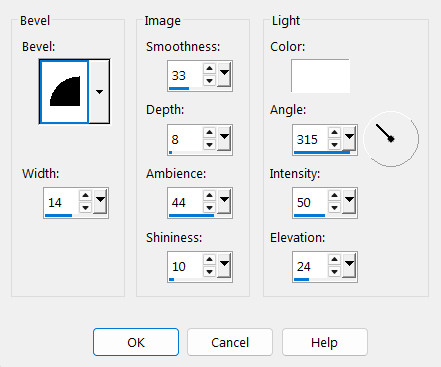
41. Effects/3D Effects/Inner Bevel. CTRL+D.
42. Image/Resize/Resize by 95%/Resize all layers checked to resize smaller.
43. Adjust/Sharpness/Sharpen.
44. Sign your name or leave a watermark if you choose. Save as a .jpg file in working folder on desktop you made at the beginning of tutorial.
45. ANIMATION: Open the Animation Shop program. File/Open/SoftlyItsFall.jpg file.
46. Duplicate image 7 times having 8 frames total. Left click in first frame. Edit/Select All.
47. Open Leaf Animation 2.gif. Left click in first frame. Edit/Select All. Copy.
48. Go back to the main Softly Its Fall image. Right click in first frame/Paste/Into Selected Frame. Hover the leaf where you want to place it then left click to set in place. See example below.
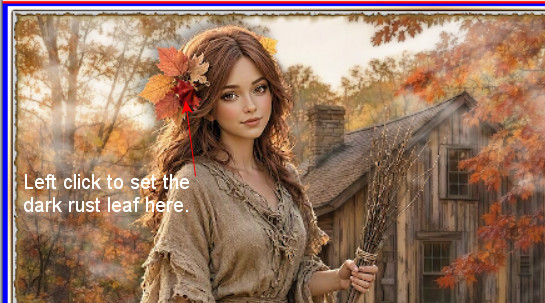
49. To view your work, go to the top tool bar View Image and click it to see your animation. If it is where you want it, then we will continue. If you need to redo it, use the back arrow to start over. Repeat directions until the leaf flutters down as you wish.
50. Duplicate Frame 8 5 times. You now have 13 frames total. Left click in first frame, Edit/Select All.
51. File/Open. Open Leaf Animation.gif with 13 frames. Left click in first frame/Edit/Select All. Copy.
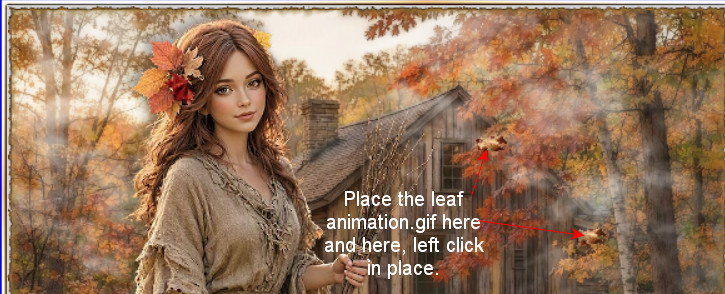
52. Right click in first frame/Paste/Into Selected Frame. Hover gold leaf over tree leaves as shown in example below. Left click into place. Repeat with second leaf as shown below.
53. Animation/Frame Properties. You will see 10 when you open it. The numbers control the speed with which your animation moves. I chose 14 to make my leaves go slower. Higher numbers are slower, lower numbers are faster.
54. Click on the View Animation icon in top tool bar to check your animation. If you are pleased with your work then we will save.
55. Edit/Save As. When the Save As box appears, give your work a name (Softly Its Fall), designate where to save it (your working folder on desktop) under Save as type let it save as a .gif file. Click Save.
56. As the boxes change, click on Next, Next, Next and Finish. Your work is now saved.
57. Thank you PamelaD for checking this tutorial. Thank you for being part of Arasimages for these many years. October 13, 2026.
If you are going to use this tutorial for stationery, cards or place the tutorial/tag on another site, I would appreciate you contacting me for permission, giving Arasimages credit for the original tutorial and if possible, a link back to my site. Thank you.
Copyright © Arasimages All Rights Reserved